
Coming soon · Release date: October 14, 2026
UpdatedTHANKS, LIGHT. Comfort Mode: Settings for Easier Play
Use THANKS, LIGHT. comfort mode to reduce camera shake and acceleration. Learn the demo's options for gamma, V-Sync, controls, and smoother puzzle play.
Jump to
What Comfort Mode Changes in THANKS, LIGHT.
A shadow becoming a solid platform should make you rethink a puzzle, and THANKS, LIGHT. comfort mode gives you tools to reduce distracting camera movement. Its bundled adjustments target camera shake and acceleration, helping you tune the first-person presentation around your comfort. Start with THANKS, LIGHT. comfort mode in the demo, then adjust brightness, display options, and controller sensitivity to suit how you play.
The game revolves around a flashlight that changes objects between flat silhouettes and physical shapes. You need to examine rooms, judge perspective, and follow objects as their properties change. Camera behavior matters because looking around is part of solving the puzzle.
Comfort Mode arrived with the demo’s “Mega Update,” alongside a redesigned interface, gamma adjustment, and a V-Sync toggle. Its purpose is to reduce 3D motion sickness through a bundle of settings that includes reduced camera shake and acceleration.
| Feature | What it changes | Where it applies |
|---|---|---|
| Comfort Mode | Bundles adjustments targeting camera shake, acceleration, and related comfort settings | Updated demo |
| Gamma slider | Adjusts the image’s brightness presentation | Updated demo |
| V-Sync toggle | Offers an option for reducing screen tearing | Updated demo |
| Gamepad sensitivity settings | Lets you adjust controller input sensitivity | Later demo update |
These settings address different parts of the experience. Gamma changes how the image looks, V-Sync addresses tearing, and controller sensitivity changes how your input feels. Keep those distinctions in mind when choosing what to adjust.
Use THANKS, LIGHT. comfort mode as your starting point for camera comfort. Then work through the individual options that address the specific distraction you notice, rather than changing every setting together.
How to Set Up the Demo’s Comfort Options
In the updated demo, press ESC → Options to reach the redesigned settings menu. Select Comfort Mode there and adjust the options to your preference.
Make changes deliberately. Return to the same area after each adjustment so you can compare camera movement and image presentation without also learning a new puzzle. Keeping the scene consistent makes your own comparison easier to follow.
| Step | Action | What to evaluate |
|---|---|---|
| Open the menu | Press ESC, then select Options | Locate Comfort Mode and the available display settings |
| Adjust camera comfort | Select Comfort Mode and tune its settings | Camera shake and acceleration during movement |
| Adjust brightness | Move the gamma slider to your preference | Whether the image feels excessively bright |
| Address tearing | Try the V-Sync toggle | Visible breaks in the image during camera movement |
| Tune controller input | Adjust gamepad sensitivity | How camera turns respond to your stick movement |
Adjust Gamma for Bright Rooms
THANKS, LIGHT. includes grand marble halls, familiar-looking corridors, and fractured black-and-white environments. Those changing visual styles give you different kinds of scenes to inspect.
The gamma slider was introduced for players who found the game too bright. If that describes your experience, adjust gamma while looking at a representative room. Check both illuminated objects and surrounding shadows as you make the change.
Keep light manipulation in mind while tuning the image. A silhouette and its solid form are central puzzle information. Examine both states before settling on a brightness setting.
Try V-Sync When You Notice Tearing
The demo’s V-Sync toggle is intended to reduce screen tearing. Try it if the image appears to split during camera movement, then compare the same turn with the setting changed.
Keep display adjustments separate from camera adjustments. If shake is the distraction, start with Comfort Mode. If brightness is the distraction, use gamma. If you see tearing, try V-Sync. This gives each change a clear purpose.
Tune Controller Sensitivity Separately
A later demo update expanded gamepad options with sensitivity settings and more stable key remapping. If you use a controller, adjust sensitivity while practicing the camera turns you make when inspecting a shape.
Change sensitivity gradually and repeat the same movement. Aim for input that lets you look around a puzzle deliberately without repeatedly correcting your view.
THANKS, LIGHT. comfort mode handles its bundled camera adjustments, while these individual controls let you refine the rest of the presentation.
Solve Spatial Puzzles With More Deliberate Movement
The flashlight determines whether an object has volume, weight, and collision. Illuminate a flat shape and it becomes a physical object; absorb its light and it returns to a weightless, static silhouette.
That transformation gives you plenty to study before moving around a room. Inspect the shape, decide what property you need, and then perform the relevant action.
| Mechanic | What it does | Puzzle detail to examine |
|---|---|---|
| Illuminate | Gives silhouettes a solid 3D form with physics | Whether the object can provide weight, collision, or a surface |
| Absorb | Removes volume and mass, returning objects to static 2D silhouettes | Whether flattening changes an object’s role in the puzzle |
| Mirror | Duplicates objects | Where an additional object could be useful |
| Lens | Resizes objects | How size affects the shape you need |
| Merge | Combines forms into new objects | Which shapes could create the required tool |
Inspect Before Circling an Object
A single 3D object can produce a circular, square, or triangular silhouette depending on perspective. Matching silhouettes can also conceal different solid shapes.
Pause to inspect what illumination reveals before moving to another viewpoint. Compare the object’s outline with its physical form, then choose the angle you want to examine next.
This turns camera movement into a deliberate part of the solution. Instead of continuously sweeping around a room, give each change in perspective a question to answer: What shape is this? What surface does it offer? What happens when its light is absorbed?
Use THANKS, LIGHT. comfort mode alongside that slower inspection routine. The setting targets camera behavior; deliberate observation helps you keep track of the geometry.
Identify the Object’s Job
A cube can tip a seesaw or block a rolling ball. The same object can serve different purposes depending on where it is placed and whether it remains solid.
Before changing its state, identify the property your solution needs:
- Illuminate when you need weight, collision, or a solid surface.
- Absorb when you want to remove volume and mass.
- Examine perspective when a silhouette’s shape is misleading.
- Consider duplication, resizing, or merging when the existing form needs another use.
Focus on one intended change at a time. Follow the resulting object behavior before making your next adjustment, especially when a puzzle combines several mechanics.
Balance Visual Comfort With PC Performance
Camera settings and graphics settings deserve separate attention. THANKS, LIGHT. comfort mode targets camera shake and acceleration, while the demo’s graphics options let you tune rendering.
A later demo update added TSR and Screen Percentage upscaling options. Use the available graphics controls when adjusting the image and performance for your PC.
The Windows requirements include two performance targets: 1080p at 30 fps on Medium settings for the minimum specification, and 1080p at 60 fps on High/Ultra settings for the recommended specification.
| Component | Minimum specification | Recommended specification |
|---|---|---|
| Operating system | Windows 10 64-bit, version 1909 or later | Windows 10 64-bit or Windows 11 |
| Processor | Intel Core i5-9400 / AMD Ryzen 5 3500X | Intel Core i5-10600 / AMD Ryzen 5 3600 |
| Memory | 8 GB RAM | 16 GB RAM |
| Graphics | NVIDIA GeForce GTX 1660, 6 GB / AMD Radeon RX 590, 8 GB VRAM | NVIDIA GeForce RTX 2060, 6 GB / AMD Radeon RX 5700, 8 GB |
| DirectX | Version 11 | Version 11 |
| Available storage | 10 GB | 12 GB |
| Performance target | 1080p, 30 fps, Medium settings | 1080p, 60 fps, High/Ultra settings |
| Storage recommendation | SSD recommended | SSD recommended |
Use these targets when choosing an initial graphics configuration. Evaluate camera movement in an actual puzzle room after making an adjustment, keeping your route and viewing direction consistent.
Check the image as well as its movement when changing Screen Percentage or TSR options. You still need to read silhouettes and inspect solid geometry, so include those details in your comparison.
Keep your graphics adjustments separate from your Comfort Mode comparison. Change one group, examine the result, and then move to the other. That makes it easier to identify which adjustment helped your experience.
Use the Demo to Find Your Preferred Setup
The free THANKS, LIGHT. Steam demo gives you a place to explore the flashlight mechanics and adjust the presentation. The June 2026 demo expansion introduced playable Chapter 3 content alongside Chapters 1 and 2, bringing more geometric and physics puzzles into the demo.
Try your settings across different environments and interactions. Examine a solid object, absorb its light, and inspect the resulting silhouette. Then compare how the camera feels while you look between those states.
THANKS, LIGHT. comfort mode is one part of a broader set of options. The updated demo also includes subtitle controls, audio adjustments, and expanded gamepad settings.
Make Dialogue and Audio Easier to Follow
The demo’s subtitle system received improvements to synchronization, stability, and readability. A later update added a toggle for subtitle effects.
Adjust subtitle effects to your preference, particularly if animated presentation distracts you while reading. Use the audio controls to tune the sound around your puzzle-solving session, too.
Keep the Current Release Date in Mind
The full game is scheduled for October 14, 2026, at 8:00 a.m. PDT, which is 3:00 p.m. UTC. The launch is dated October 15 in some regions because of time zone differences.
The full adventure spans three chapters, more than 60 stages, and 6+ hours of play. Use the demo to find your preferred settings before beginning that longer puzzle journey.
Visit the THANKS, LIGHT. Steam page to wishlist the game and access its demo. Start with the comfort controls, then refine the settings that affect your own view of its light-and-shadow puzzles.
FAQ
What does THANKS, LIGHT. comfort mode do?
THANKS, LIGHT. comfort mode bundles adjustments intended to reduce 3D motion sickness, including changes to camera shake and acceleration. It was introduced in the updated demo’s options menu.
How do I access Comfort Mode in the demo?
Press ESC → Options in the updated demo. Select Comfort Mode there, then adjust the available settings to your preference.
Does the demo have brightness and V-Sync settings?
Yes. The demo’s “Mega Update” added a gamma slider for brightness adjustment and a V-Sync toggle intended to reduce screen tearing. Both are part of the expanded options menu.
Can I adjust controller sensitivity?
Yes. A later demo update expanded gamepad options with sensitivity settings and more stable key remapping. Tune sensitivity while comparing the same camera movement so you can judge how each adjustment feels.
Popular pages
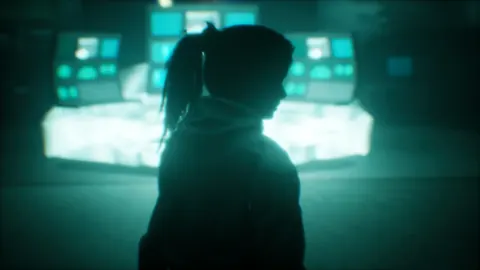
THANKS, LIGHT. Platforms and Wishlist: Your Launch Guide
THANKS, LIGHT. platforms and wishlist guide: check Steam launch timing, PlayStation status, Steam Deck support, and how to track a light-powered puzzler.
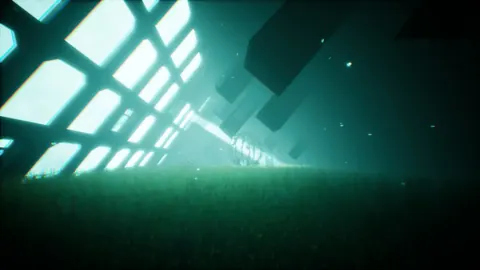
THANKS, LIGHT. System Requirements: Can Your PC Run It?
Check THANKS, LIGHT. system requirements, compare minimum and recommended PC specs, and prepare for launch with RAM, GPU, storage, and Steam Deck details.
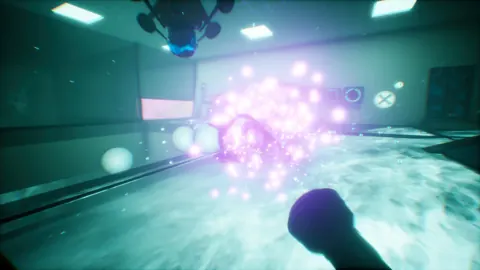
THANKS, LIGHT. Trailer and Screenshots: Launch Guide
Explore THANKS, LIGHT. trailer and screenshots, learn how its light-based puzzles work, and check the October 14 release details before you wishlist it.
THANKS, LIGHT. Developer and Publisher: Who Makes It?
Meet the THANKS, LIGHT. developer and publisher, explore its light-based puzzles, and check the planned release date, demo, and Steam Deck support today.
Join the community
Official channels for news, updates and player help: